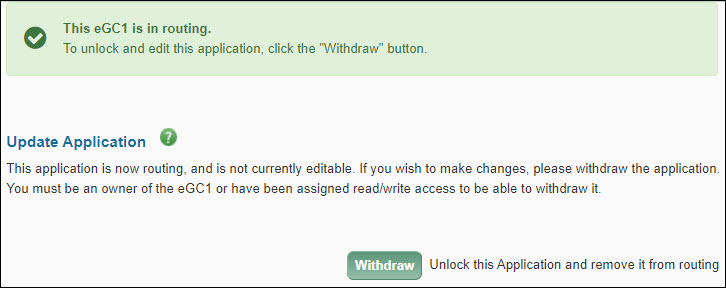
This section appears at the top of the Certify & Route page after an application has been routed to reviewers.
To unlock your application for editing, click the Withdraw button to change its status to Withdrawn and make it editable. Only eGC1 owners, users with assigned read/write access, or reviewers with the Global Editor role can withdraw an eGC1.
After you make your changes and re-route the eGC1, it will continue routing where it stopped when you withdrew the application. Thus, people who already approved the eGC1 do not need to approve it again.
Depending on the significance of the changes made, you may want to use the Add Approver feature to add them to the flow a second time, so they can approve the changes. Check with your unit for guidance.
If you make changes to a compliance question, change the PI, or add new personnel, etc., Ìýthe approval graph may change. AnyÌýapproved nodesÌýthat remain on the changed flow, will still be in an approved state.
Note: If you have marked an eGC1 as Ready to Submit and it has In OSP status, you cannot withdraw it. Instead, contact OSP and request they return the eGC1.
New Features
These changes were made as a result of introducing the new Financial Interest Disclosure System (FIDS) which integrates with SAGE.
On the eGC1 PI & Personnel page:
- eGC1 Preparers can select Investigator status.
- Disclosure notifications to investigators to complete a disclosure in FIDS can now be sent.
- Each investigator’s SFI status will display based on the information in FIDS.
- The PHS FCOI training status will display.
- The FIDS disclosure status will display.
- Changes may be made to the PI or personnel after the eGC1 has been approved by OSP.
- The history of any post-approval PI or personnel changes will be displayed.
On the Certify & Route page:
- ÌýAn eGC1 cannot be completed until all investigators have received disclosure notifications.
- The Ready to Submit question cannot be answered as “Yes” until all investigators have completed their disclosures in FIDS.
The Disclosure Notification section appears on the PI & Personnel page.

The Send Disclosure Notification button is used to notify investigators that they have to complete a disclosure (thus linking the disclosure with the eGC1). The button displays both before and after OSP approves the eGC1.
Note: If the Sponsor name (on the Details page) is either blank or “Pending – Notify OSP of Correct Sponsor” the Send Disclosure Notifications button will be grayed out, and an alert message displays. Once you select a Sponsor, the button will become active.
You should send Disclosure Notifications:
- As soon as possible when the eGC1 is composing. If you haven’t sent the notifications Ìýbefore you complete the eGC1, SAGE will automatically send them (at Noon and 10:00 PM daily).
- Whenever you add a new investigator.
- At Just in Time (JIT) for eGC1s that were approved prior to 8/17/2012.
To send an email message to let each investigator know that they need to complete a disclosure, click the Send Disclosure Notifications button. Once you sendÌýthe notification, the Compliance Details information (in the Personnel section) will change from “Disclosure Notification not Sent” to “Disclosure Required”.
If an investigator has an unlisted email, that information will display under their name in the Personnel section. When you select the Send Disclosure Notifications button, an informational message appears, explaining that the standard email text (as shown below) will be included in an email to the eGC1 Preparer with instructions to forward it to the investigator.

Note: SAGE will send only one email notification to each investigator. If an investigator misplaces the email message, they can access FIDS at Ìý
Disclosure message details
- Subject Line: Indicates that action is required to complete a disclosure for a specific eGC1
- Email Content: Includes the following information:
- The investigator’s role
- The eGC1’s number and title
- The PI’s name
- The sponsor and sponsor’s deadline
- A link to access FIDS and instructions to get started
- OSP deadline information fromÌý
- A reminder about FCOI training for Institutional Review Required (IRR) sponsors
Fixes
SAGE Budget: When a line item is deleted from the budget worksheet, the page refreshes to reflect the change. However, if a budget has Targets &ÌýLimits enabled, the F&A values displayed are not immediately updated. The next time the page is refreshed, the displayed F&A values will be correct, and the Total Project Costs will include the F&A change.
The 91̽»¨Box Number is Now a Required Field
When a user chooses the Organization Code Receiving Funding, the 91̽»¨Box Number will be automatically populated. Users can still edit the field as needed.
The Total Costs (Direct + F&A) are calculated and displayed automatically by SAGE for the 1st Period and Total (All Periods).
